Debian 13 on a Raspberry Pi
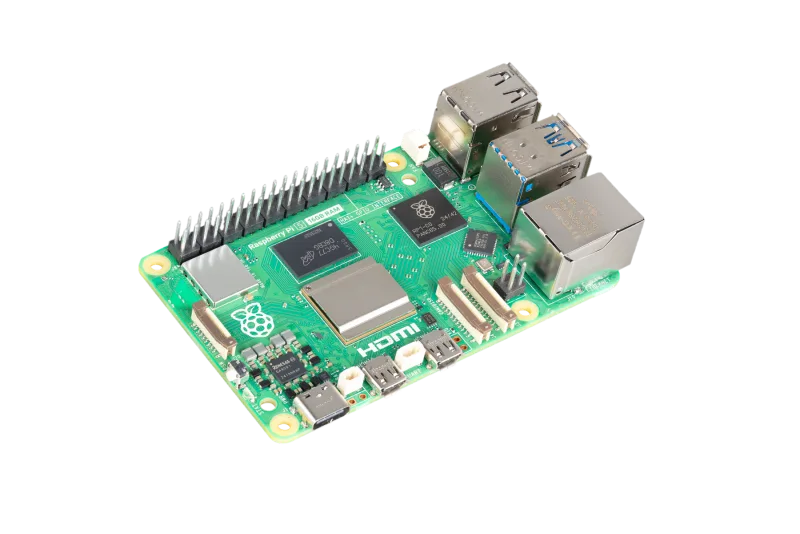
Install the OS and required dependencies and update the kernel on a Raspberry Pi running Debian Trixie. A Pi 4 or 5 is recommended. An RPi 3B+ works, but it lacks USB 3.0, which noticeably impacts camera performance.
Flashing the SD Card
Download the Raspberry Pi Imager for your OS from the official site: https://www.raspberrypi.com/software/
Available for Windows, macOS, and Linux.
Steps
- Insert your SD card into your computer
- Open Raspberry Pi Imager
- Click Choose Device and select your Raspberry Pi model
- Click Choose OS and select Raspberry Pi OS (64-bit). Choose either the Desktop or Lite (headless) version
- Click Choose Storage and select your SD card
- Click Next. You will be prompted to apply OS customisation settings
- It is recommended to configure the following before flashing:
- Hostname
- Username and password
- Wi-Fi credentials (if not using ethernet)
- Enable SSH under the Services tab for remote access
- Click Save, then Yes to apply settings
- Click Write and wait for the process to complete
- Once verified, remove the SD card and insert it into your Raspberry Pi
Remote Access
Two remote access options are available:
- SSH: Enabled during the flashing process via the Imager settings. Recommended for headless setups and works on a local network without internet access. Connect using an SSH client such as Terminal (macOS/Linux) or PuTTY on Windows
- Raspberry Pi Connect: A newer option from Raspberry Pi that allows remote access via a browser without needing to be on the same local network. Requires an active internet connection on both the Pi and the connecting device. See https://connect.raspberrypi.com for setup instructions
Make Sure the System Is Up to Date
Note 1: If you are using RPi Connect it may disconnect in the middle of the update. Simply reconnect.
Note 2: If asked about the master references, choose Y.
sudo apt update && sudo apt full-upgrade -y && sudo reboot
Troubleshooting
If you run into problems, check dmesg for power-related errors. The Raspberry Pi 5 requires 5V/5A. It will run on the 5V/3A output from mounts like iOptron or ZWO, but it will be underpowered and can not sustain all the USB ports.
[ 6838.631023] usb usb1-port1: over-current change #29
[ 6838.631075] usb usb3-port1: over-current change #38
[ 6838.654641] usb usb2-port1: over-current change #43
[ 6838.654696] usb usb4-port1: over-current change #43
[ 6838.766589] usb usb3-port2: over-current change #36
[ 6838.766662] usb usb1-port2: over-current change #29
Install AlpacaBridge
Your board is ready. Continue to Install & Configure AlpacaBridge to add the OpenAstro APT repository, install the service, and set up your devices.